


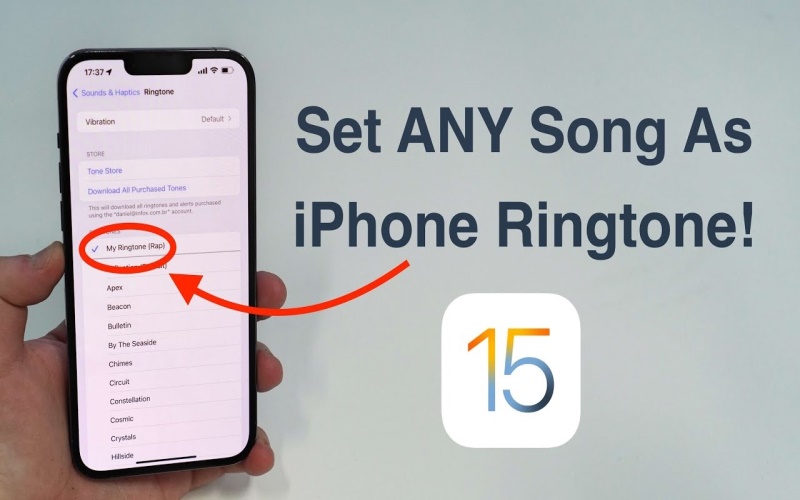
Introduction:
In the era of smartphones, personalization has become a key aspect of making your device feel truly yours. One way to add a unique touch to your iPhone is by setting a custom song as your ringtone. While Apple provides a variety of default ringtones, using your favorite song can add a personal and distinctive flair to your incoming calls. In this article, we’ll walk you through the process of setting a song as a ringtone on your iPhone.
Step 1: Choose Your Song
The first step in setting a song as your iPhone ringtone is selecting the perfect track. Open the Music app on your iPhone and navigate to the song you want to use. Keep in mind that the song should be downloaded to your device for offline use. If it’s not already downloaded, tap the cloud icon to download it.
Step 2: Trim Your Song
While full-length songs are great for music libraries, ringtones are typically shorter for a more concise and recognizable alert. Apple limits custom ringtones to a 30-second duration. To trim your chosen song, follow these steps:
Open the “Music” app on your iPhone.
Find and play the song you want to use.
Pause the song at the point where you want the ringtone to start and note the time.
Tap the ellipsis (three dots) to open a menu and select “Song Info.”
In the “Options” tab, set the start and stop times to create a 30-second snippet. Make sure the “Stop Time” does not exceed 30 seconds.
Tap “Done” to save the changes.
Step 3: Create AAC Version
Next, you’ll need to create an AAC (Advanced Audio Codec) version of your trimmed song. Follow these steps:
Return to the Music app and find the song you just trimmed.
Tap the ellipsis (three dots) and select “Create AAC Version.”
This will create a duplicate of your trimmed song in AAC format, which is necessary for turning it into a ringtone.
Step 4: Locate the AAC File
Now that you have the AAC version of your song, you’ll need to locate the file on your computer. Connect your iPhone to your computer and open iTunes. Follow these steps:
In iTunes, select your device.
Go to the “File” menu and choose “Devices” and then “Transfer Purchases from [Your Device].”
This will ensure that the newly created AAC file is transferred to your iTunes library.
Step 5: Convert to Ringtone
Once you’ve transferred the AAC file to your iTunes library, you’ll need to convert it into a ringtone file. Follow these steps:
Find the AAC file in your iTunes library.
Change the file extension from “.m4a” to “.m4r.” Confirm the change when prompted.
The “.m4r” extension signifies that the file is a ringtone.
Step 6: Add the Ringtone to iTunes
After converting the file, add it back to iTunes with the new extension. Follow these steps:
In iTunes, go to the “File” menu and select “Add File to Library” or “Add Folder to Library,” depending on your preference.
Locate the newly converted “.m4r” file and click “Open.”
The ringtone will now appear in your iTunes library.
Step 7: Sync the Ringtone to Your iPhone
The final step is to sync the custom ringtone to your iPhone. Follow these steps:
Connect your iPhone to your computer.
Select your device in iTunes.
Go to the “Tones” tab.
Check the box for “Sync Tones” and select the custom ringtone you created.
Click “Apply” to sync the ringtone to your iPhone.
Conclusion:
Setting a song as your iPhone ringtone is a simple and enjoyable way to personalize your device. By following these step-by-step instructions, you can turn your favorite track into a custom ringtone that reflects your individual style. Personalizing your iPhone experience has never been easier, allowing you to stand out in the crowd with a unique and distinctive ringtone for your incoming calls.
